Zum Produktinhalt springen
1 von 2

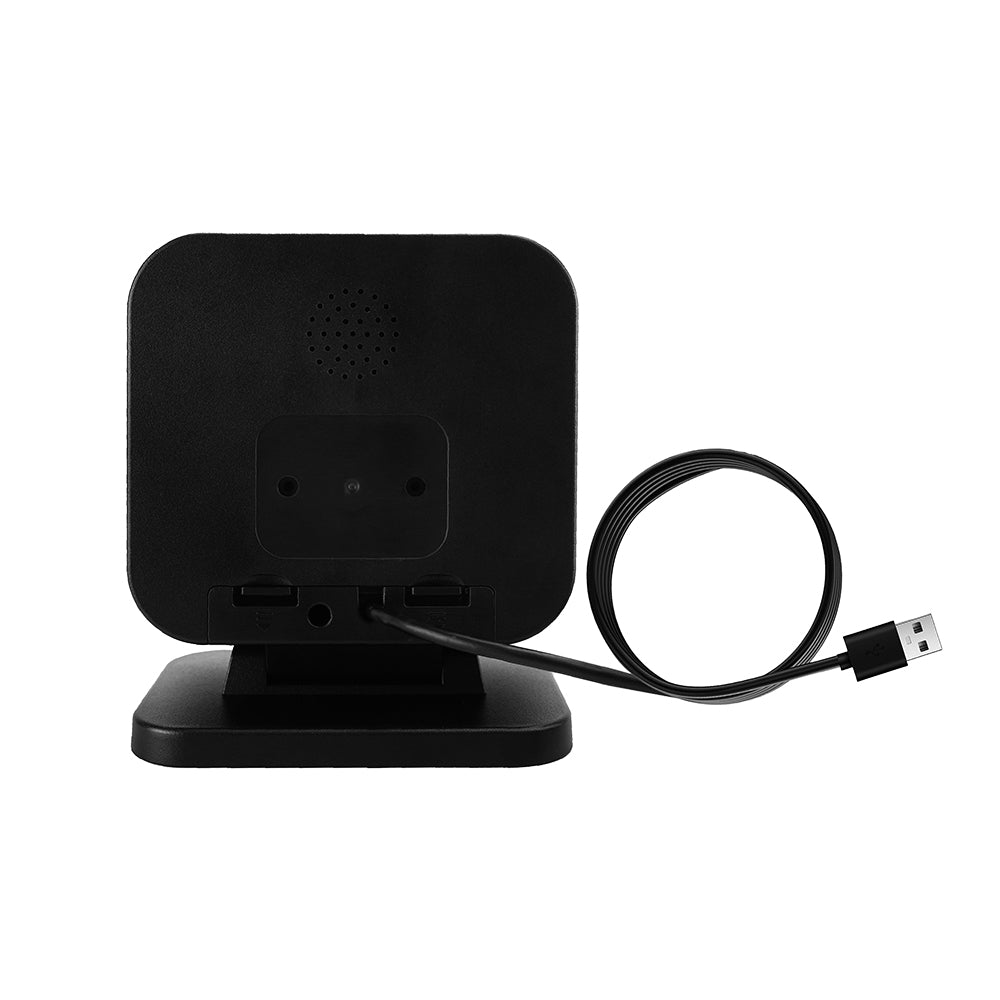
DP9280 Hands-Free 2D Barcode Scanner

Regulärer Preis $149.00 USD
Angebotspreis $149.00 USD Regulärer Preis $199.00 USD
Versand wird an der Kasse berechnet.

Small Batch Purchasing

We support small-batch purchasing, with flexible minimums starting from 5–10 units depending on the product. Pricing varies based on order quantity and the collaboration model. Please feel free to contact us for a quote.

Delivery and Shipping

Order Processing

Orders are typically processed within 1–3 business days.

Shipping Options

We offer two shipping methods: Standard Shipping and Expedited Shipping.

Small-batch orders are shipped by Expedited Shipping by default.

If an item is temporarily out of stock, production will be arranged immediately. Estimated shipping time is 1–10 days.

For full details, please review our Shipping Policy or contact us at any time.

30 Days Returns

If you’re not completely satisfied with your purchase from NETUM, you can return it for a replacement, exchange, or refund at any time within 30 days of purchase.
Read our return policy here.

Warranty

1 year warranty. No matter where you purchase it, we provide 24/7 customer support.

Overview

The NETUM DP9280 provides hands-free 1D and 2D barcode capture at a desktop workstation. Present a printed label or screen-based code to the scanning window and let automatic sensing start the read. Its USB connection suits compatible computers and POS terminals.

Key Features

  • Reads common 1D codes, QR Code, PDF417 and Data Matrix
  • Automatic presentation scanning
  • Wide scanning window with supplemental illumination
  • USB HID and USB COM operation

DP9280 Barcode scanner specifications

See what this scanner can do.

Explore the performance, connectivity, power, and durability details that matter when choosing a scanner for your workflow.

Model
DP9280
Decode Capabilities
1D/2D
Scan Engine Technology
CMOS
Image Sensor
1280 × 800 CMOS
Sensor Resolution
1280 × 800 CMOS
Illumination
illumination LED Red LED (14) sensor LED Redexternal-light sensing
Acquisition Rate
120 frames/s
Minimum Element Resolution
1D ≥4 mil 2D≥6 mil
Minimum Print Contrast
≥20%
Pitch / Skew / Roll Tolerance
Horizontal: 56°, Verticalis37° Pitch±55°, Skew±55°, Roll 360°
Depth of Field
EAN13 13il 0-330 mm EAN13 5 mil 0-130 mm Code 128 5 mil 8 bit 0-150 mm QR 20 mil 11 bit 0-210 mm Code39 13 mil 9 bit displaypayment code 0-650 mm
Supported Symbologies
2D PDF417, Micro PDF417, Data Matrix, QR Code, Micro QR, Aztec, MaxiCode 1D Interleaved 2 of 5, ISBN, Code 93, Code 11, UCC/EAN-128 GS1 DataBar, Matrix 2 of 5, Industrial 2 of 5, Code 128, EAN-13, EAN-8, Code 39, UPC-A, UPC-E, Codabar, Standard 2 of 5, MSI-Plessey, GS1 composite code,
View all specifications Show fewer specifications
Connectivity
Wired
Host Interfaces
USB, Type-C
Cradle / Stand Included
No
Operating Temperature
-20°C~+60°C
Storage Temperature
-40°C~+70°C
Relative Humidity
5%~95% (non-condensing)
Ambient Light Immunity
0~100,000 lux

Downloads

Manuals, software, and developer resources selected for this exact model.

1 resources

Will this barcode scanner work with my computer, mobile device, or POS system?

Usually, yes—if the connection interface matches your device or the scanner supports USB HID keyboard mode. Some POS systems only accept approved USB VID/PID values, so they may reject an otherwise compatible HID scanner. Check which type your POS uses, or send us the POS model and software name before ordering.

Which barcodes can it read, and can it scan from a phone or computer screen?

Barcode support varies by model. Devices with a CMOS scanning engine can scan barcodes on a computer screen; otherwise, they cannot.

How do I connect the scanner?

For a wired scanner, connect the USB cable and start scanning—most models are ready to use right away. For a wireless scanner, follow the model’s manual to connect by 2.4G receiver or Bluetooth. Pairing steps can differ between models, so use the correct guide in Downloads.

Can I scan directly into Excel, inventory software, or a POS system?

Yes, in most cases. When the scanner is using HID keyboard mode, scanned data appears wherever the cursor is active, such as in Excel, inventory software, or a POS input field. Workflows that use serial communication, an API, or an SDK may need extra setup. Check the communication modes in the Specifications and any available software or SDK in Downloads.

The scanner beeps, but no data appears—what should I check?

A beep usually means the barcode was read, but the data is not reaching the active field. Click inside a blank field in Notepad, TextEdit, or your POS and scan again. Then check the USB cable, 2.4G receiver, or Bluetooth connection and confirm the correct interface mode. If it still does not work properly, please contact us and provide the scanner model, a description of the problem, and the operating system and application name.

Barcode scanners for your business

Planning a rollout, replacement, or bulk purchase? Share your requirements and we’ll help you choose the right scanner and configuration.

Request a quote

Tell us the model(s), quantity, use case, barcode types, connection or integration needs, customization requirements, and delivery destination. We’ll review the details and recommend a suitable solution.

If you are unsure, tell us what and where you need to scan.

Include your application, barcode types, connection or integration needs, customization requests, and target delivery date.